


Basic overview of this tutorial is if there's some kind of timer or client
software on the computer you're using at the Net Cafe you can hopefully disable it.
Firstly we need to gain access to command prompt (cmd.exe) to do this there's a few
ways.
1) The most basic is to go Start/Run/cmd.exe and a black input screen should pop up.
Say that's disabled then we can try some other methods.
2) Press the Windows Logo + R and it will start run up. (hopefully)
3) Navigate your way to C:\WINDOWS\system32 and run cmd.exe from in there.
4) Open notepad type "cmd.exe" without the quotation marks ("") and then
go to File/Save As.. and type the name for the file and have it end with
.bat for example "MyNewFile.bat" and select Save as type and select All Files.
Make sure to save it somewhere you can access it, Like the desktop.
If they have deleted Notepad then go in to Internet Explorer and right click
and select View Source or on the menu bar click View then source and perform the
same process as above.
Once you have done this you can run the file. If you can't open files from the desktop
then go back into Internet Explorer and go to View/Explorer Bar/Folders and navigate to
the Desktop and it will show the saves files on the desktop in a folder type window.
Once you have access to command prompt you can perform some usefull actions e.g shutdown
programs, shutdown other peoples computers, add new accounts.
Ok, well most Net cafes have software running that boots you off of the machine after a certain
ammount of time unless you pay for more time. Well, we don't want that to happen now do we?
Firstly try figure out the Net Cafes timeing/credit softwares name cause this can help.
For more info on the software running we can use the command "tasklist" inside of command prompt.
example: "tasklist" (without quotation marks)
Basicly it brings up all the processes running.
Now say we know the process name for the Net Cafes software we need to disable it. So, how do we do that?
we use "taskkill" >:]
Basicly kills the process we specifcy. Say the Net Cafes software is "Timer.exe" for example and it's shown in
the task list like that we would do this.
example: "taskkill /im Timer.exe /f"
/im : is for image name. Not quite sure what it means, but we need it.
Timer.exe : that's the Net cafes software/process name (example)
/f : Forcefully shuts the program.
Now hopefully your Net Cafes software is terminated and you can freely use their computer with no time restriction.
If you have no luck finding the Net Cafes software name then just try ending processes that Windows Doesn't rely on.
Perhaps you want to have a little fun with people on the network at the Net cafe? well here's a few things for you
to do with command prompt.
Find the people on the network with "net view" and it will list the other computers names on the network.
The shutdown command. Basically the shutdown command will shutdown a computer on the network or your own computer (comes in
handy)
example: "shutdown -s -m HJCPwnts -t 20 -c You're being shutdown"
use "shutdown -a" to cancel this action so you don't shut your own computer down.
-s : sets the shutdown action.
-m : specify the computer name (HJCPwts) that's what my computer name would be on the network. (to find out
how to find computer names use net view. It will list the other computer names.)
-t : the time until shutdown in seconds. Just specify it for 0 if you want it instant.
-c : the comment that will be shown on the shutdown window (not needed, but goo to leave the victim a message)
-f : I left this one out because it shuts the applications the user is running down, but add it on the end when doing
it to someone else.
Now for some more stuff. Perhaps we want to create a new account on this computer and login to it? Well, lets do it then. Ok, this is how we do it.
In command prompt type "net user CoolGuy /add" this basically adds a new user by the name of CoolGuy. Simple ehh?
well we have struck a problemo. How the hell do we login to that account? EASY!
In fact we have already covered most of it. We will be using the shutdown command again.
"shutdown -l" : basicly this logs us out and we can log back in with the CoolGuy account.
-l : sets the logout action.
Ok, so you have had your fun with the new account now and you want to get rid of it in case
of the Net Cafe staff finding it. Well that's simple aswell, all we do is..
"net user CoolGuy /delete" and it will delete that user. Make sure to check it has been
deleted by using "net user" and it will show the accounts.
Basic overview of this tutorial is if there's some kind of timer or client
software on the computer you're using at the Net Cafe you can hopefully disable it.
Firstly we need to gain access to command prompt (cmd.exe) to do this there's a few
ways.
1) The most basic is to go Start/Run/cmd.exe and a black input screen should pop up.
Say that's disabled then we can try some other methods.
2) Press the Windows Logo + R and it will start run up. (hopefully)
3) Navigate your way to C:\WINDOWS\system32 and run cmd.exe from in there.
4) Open notepad type "cmd.exe" without the quotation marks ("") and then
go to File/Save As.. and type the name for the file and have it end with
.bat for example "MyNewFile.bat" and select Save as type and select All Files.
Make sure to save it somewhere you can access it, Like the desktop.
If they have deleted Notepad then go in to Internet Explorer and right click
and select View Source or on the menu bar click View then source and perform the
same process as above.
Once you have done this you can run the file. If you can't open files from the desktop
then go back into Internet Explorer and go to View/Explorer Bar/Folders and navigate to
the Desktop and it will show the saves files on the desktop in a folder type window.
Once you have access to command prompt you can perform some usefull actions e.g shutdown
programs, shutdown other peoples computers, add new accounts.
Ok, well most Net cafes have software running that boots you off of the machine after a certain
ammount of time unless you pay for more time. Well, we don't want that to happen now do we?
Firstly try figure out the Net Cafes timeing/credit softwares name cause this can help.
For more info on the software running we can use the command "tasklist" inside of command prompt.
example: "tasklist" (without quotation marks)
Basicly it brings up all the processes running.
Now say we know the process name for the Net Cafes software we need to disable it. So, how do we do that?
we use "taskkill" >:]
Basicly kills the process we specifcy. Say the Net Cafes software is "Timer.exe" for example and it's shown in
the task list like that we would do this.
example: "taskkill /im Timer.exe /f"
/im : is for image name. Not quite sure what it means, but we need it.
Timer.exe : that's the Net cafes software/process name (example)
/f : Forcefully shuts the program.
Now hopefully your Net Cafes software is terminated and you can freely use their computer with no time restriction.
If you have no luck finding the Net Cafes software name then just try ending processes that Windows Doesn't rely on.
Perhaps you want to have a little fun with people on the network at the Net cafe? well here's a few things for you
to do with command prompt.
Find the people on the network with "net view" and it will list the other computers names on the network.
The shutdown command. Basically the shutdown command will shutdown a computer on the network or your own computer (comes in
handy)
example: "shutdown -s -m HJCPwnts -t 20 -c You're being shutdown"
use "shutdown -a" to cancel this action so you don't shut your own computer down.
-s : sets the shutdown action.
-m : specify the computer name (HJCPwts) that's what my computer name would be on the network. (to find out
how to find computer names use net view. It will list the other computer names.)
-t : the time until shutdown in seconds. Just specify it for 0 if you want it instant.
-c : the comment that will be shown on the shutdown window (not needed, but goo to leave the victim a message)
-f : I left this one out because it shuts the applications the user is running down, but add it on the end when doing
it to someone else.
Now for some more stuff. Perhaps we want to create a new account on this computer and login to it? Well, lets do it then. Ok, this is how we do it.
In command prompt type "net user CoolGuy /add" this basically adds a new user by the name of CoolGuy. Simple ehh?
well we have struck a problemo. How the hell do we login to that account? EASY!
In fact we have already covered most of it. We will be using the shutdown command again.
"shutdown -l" : basicly this logs us out and we can log back in with the CoolGuy account.
-l : sets the logout action.
Ok, so you have had your fun with the new account now and you want to get rid of it in case
of the Net Cafe staff finding it. Well that's simple aswell, all we do is..
"net user CoolGuy /delete" and it will delete that user. Make sure to check it has been
deleted by using "net user" and it will show the accounts.
530 word pages, font size 12, and ower 1 milion of serial numbers for windows appliactions
download here
530 word pages, font size 12, and ower 1 milion of serial numbers for windows appliactions
download here

There’s an easy way to disable Microsoft error report in windows.
1) Open Control Panel (Start > Control Panel)
2) Open the Problem Reports & Solutions applet Under advanced options and disable error reporting.
1) Right click on my computer (Desktop) and click properties
2) Click the Advanced Tab
3) You’ll see a “Error reporting” button at the bottom, click it
4) Select Disable Error Reporting.
There’s an easy way to disable Microsoft error report in windows.
1) Open Control Panel (Start > Control Panel)
2) Open the Problem Reports & Solutions applet Under advanced options and disable error reporting.
1) Right click on my computer (Desktop) and click properties
2) Click the Advanced Tab
3) You’ll see a “Error reporting” button at the bottom, click it
4) Select Disable Error Reporting.
METHOD 1
SOFTWARE NEEDED
ophcrack vista live cd download it here
STEP 1:Please make sure you download the Windows Vista Live CD and not the one for Windows XP. The Live CD is a disc image saved as an '.iso' file which you need to burn onto a CD. Use a good CD/DVD burning solution to write the image file on a blank CD.
STEP 2:
Once the disc is ready, you need to boot directly from the CD you just created
STEP 3:
Once you manage to boot from the Ophcrack Live CD, you will have three choices on how to launch the tool. The first two options will launch Ophcrack in a graphic mode. If you have problems with the first mode, then reboot and choose the second. Depending on the hardware configuration, on some computers both modes will work. On the computers i have tested it, sometimes the first mode did not function properly but the second one always worked just fine.
If you don't want any graphics, then choose the third option which will launch Ophcrack in text mode.
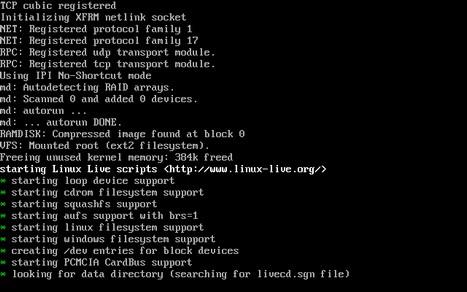
Once you have chosen a mode, Ophcrack will start loading and retrieving your passwords. This can take a few minutes, depending on your configuration and how strong the current passwords are. Please be patient and wait until the screens with text like the one below disappear and the graphical user interface is displayed.
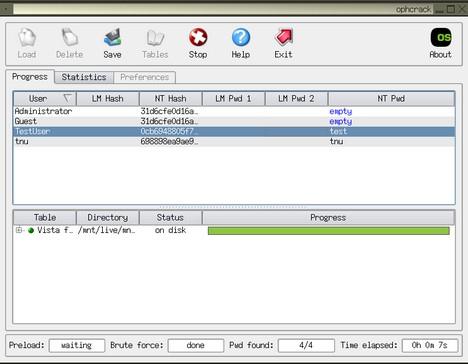
Once the tool loads, it will show a screen like the one 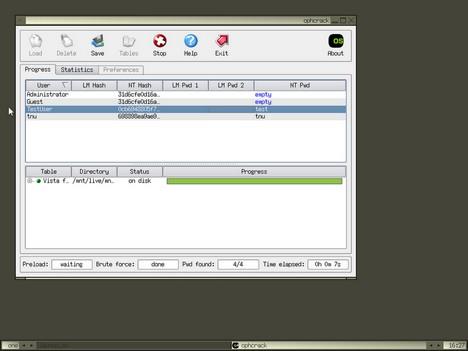
When finished, Ophcrack will show you all the registered users from your Windows Vista and their corresponding passwords in the NT Pwd column.
Write down the password for the user that interests you, reboot your PC and login to Windows Vista using the password you just recovered.
NOTE: this crack tool can crack only dictionary words ,it cant crack alphanumeric character password so i recommend the next method
Method 2
This is very easy method.from this method you can reset your password but you dont come to know your password as above method.
This method works on any of the following windows platform:-

- win 98
- win 2000
- win me
- win Xp
- win vista
You can download it from torrent sites
or from here click this link
after downloading the iso file burn the image to cd or dvd .I prefer u burn with roxio creator it works extremely well.
after burning it to cd , restart your pc
& boot with that cd
this tool works on linux
so good luck cracking& resetting password
please comment
METHOD 1
SOFTWARE NEEDED
ophcrack vista live cd download it here
STEP 1:Please make sure you download the Windows Vista Live CD and not the one for Windows XP. The Live CD is a disc image saved as an '.iso' file which you need to burn onto a CD. Use a good CD/DVD burning solution to write the image file on a blank CD.
STEP 2:
Once the disc is ready, you need to boot directly from the CD you just created
STEP 3:
Once you manage to boot from the Ophcrack Live CD, you will have three choices on how to launch the tool. The first two options will launch Ophcrack in a graphic mode. If you have problems with the first mode, then reboot and choose the second. Depending on the hardware configuration, on some computers both modes will work. On the computers i have tested it, sometimes the first mode did not function properly but the second one always worked just fine.
If you don't want any graphics, then choose the third option which will launch Ophcrack in text mode.
Once you have chosen a mode, Ophcrack will start loading and retrieving your passwords. This can take a few minutes, depending on your configuration and how strong the current passwords are. Please be patient and wait until the screens with text like the one below disappear and the graphical user interface is displayed.
Once the tool loads, it will show a screen like the one
When finished, Ophcrack will show you all the registered users from your Windows Vista and their corresponding passwords in the NT Pwd column.
Write down the password for the user that interests you, reboot your PC and login to Windows Vista using the password you just recovered.
NOTE: this crack tool can crack only dictionary words ,it cant crack alphanumeric character password so i recommend the next method
Method 2
This is very easy method.from this method you can reset your password but you dont come to know your password as above method.
This method works on any of the following windows platform:-
- win 98
- win 2000
- win me
- win Xp
- win vista
You can download it from torrent sites
or from here click this link
after downloading the iso file burn the image to cd or dvd .I prefer u burn with roxio creator it works extremely well.
after burning it to cd , restart your pc
& boot with that cd
this tool works on linux
so good luck cracking& resetting password
please comment
Remove arrow Shortcut from desktop.
Here's how you can remove those shortcut arrows from your desktop icons in Windows XP.
1. Start ->Run -> regedit.
2. Navigate to HKEY_CLASSES_ROOTlnkfile
3. Delete the IsShortcut registry value.
You may need to restart Windows XP.
Thats it. .You have successfuly removed arrow shortcut. .
Remove arrow Shortcut from desktop.
Here's how you can remove those shortcut arrows from your desktop icons in Windows XP.
1. Start ->Run -> regedit.
2. Navigate to HKEY_CLASSES_ROOTlnkfile
3. Delete the IsShortcut registry value.
You may need to restart Windows XP.
Thats it. .You have successfuly removed arrow shortcut. .
Branding Windows with your Name !!
Open Notepad dump the following lines into it and Save It with the name OEMINFO.INI in the c:\windows\system32
directory:- [General]
- Manufacturer=Your Name Here
- Model=Your Model Here
- [Support Information]
Line1=Your Name Here
- Line2=Your Address Here
- Line3=Your Email Address Here
- Save the file,
then make a right click on my computer select properties, in the general tab a button will be highlighted (support information) make a click on it, you will be able to see the changes.- Now if you want to
display some more information then simply increase the line in the file..
- ex: Line4=Your Working Hours Here
Pls ..Reply With your comments!
Branding Windows with your Name !!
Open Notepad dump the following lines into it and Save It with the name OEMINFO.INI in the c:\windows\system32
directory:- [General]
- Manufacturer=Your Name Here
- Model=Your Model Here
- [Support Information]
Line1=Your Name Here
- Line2=Your Address Here
- Line3=Your Email Address Here
- Save the file,
then make a right click on my computer select properties, in the general tab a button will be highlighted (support information) make a click on it, you will be able to see the changes.- Now if you want to
display some more information then simply increase the line in the file..
- ex: Line4=Your Working Hours Here
Pls ..Reply With your comments!
Put your name on the tookbar(secret folder)
Right click the Taskbar > Toolbars > New Toolbar > Make a new Folder
and name it with your name i.e.iXXi and then select it. Now you have your name in the Taskbar. If you want you can hide that folder by going to properties and check hidden .Thats it now you have a secret folder.
Have a crazy day! Jst comment here,to place your link here!
Put your name on the tookbar(secret folder)
Right click the Taskbar > Toolbars > New Toolbar > Make a new Folder
and name it with your name i.e.iXXi and then select it. Now you have your name in the Taskbar. If you want you can hide that folder by going to properties and check hidden .Thats it now you have a secret folder.
Have a crazy day! Jst comment here,to place your link here!
Clear computer memory without restarting
It often happens our computer to operate its work very slowly.Most of people restart computer, but we have another simple method to proceed without restarting your OS.
1. Right-click on desktop and choose New-Shortcut
2. In the Type the location of the item write this code:
%windir%\system32\rundll32.exe advapi32.dll,ProcessIdleTasks
3. Click Next
4. Name as Clear Memory
5. Click Finish.
Now whenever you see that your PC is working slowly go to this icon and click it, without restarting PC would clear your memory and speed up processes.
If u liked this post just say Thank you at least .
Clear computer memory without restarting
It often happens our computer to operate its work very slowly.Most of people restart computer, but we have another simple method to proceed without restarting your OS.
1. Right-click on desktop and choose New-Shortcut
2. In the Type the location of the item write this code:
%windir%\system32\rundll32.exe advapi32.dll,ProcessIdleTasks
3. Click Next
4. Name as Clear Memory
5. Click Finish.
Now whenever you see that your PC is working slowly go to this icon and click it, without restarting PC would clear your memory and speed up processes.
If u liked this post just say Thank you at least .


