


This is a password hack but it clears the BIOS such that the next time you start the PC, the CMOS does not ask for any password. Now if you are able to bring the DOS prompt up, then you will be able to change the BIOS setting to the default. To clear the CMOS do the following:Illuminations
Get DOS prompt and type:
"Code":
"""DEBUG hit enter
-o 70 2e hit enter
-o 71 ff hit enter
-q hit enter
exit hit enter"""
Restart the computer. It works on most versions of the AWARD BIOS.
Accessing information on the hard disk
When you turn on the host machine, enter the CMOS setup menu (usually you have to press F2, or DEL, or CTRL+ALT+S during the boot sequence) and go to STANDARD CMOS SETUP, and set the channel to which you have put the hard disk as TYPE=Auto, MODE=AUTO, then SAVE & EXIT SETUP. Now you have access to the hard disk.
Standard BIOS backdoor passwords
The first, less invasive, attempt to bypass a BIOS password is to try on of these standard manufacturer's backdoor passwords:
AWARD BIOS
AWARD SW, AWARD_SW, Award SW, AWARD PW, _award, awkward, J64, j256, j262, j332, j322, 01322222, 589589, 589721, 595595, 598598, HLT, SER, SKY_FOX, aLLy, aLLY, Condo, CONCAT, TTPTHA, aPAf, HLT, KDD, ZBAAACA, ZAAADA, ZJAAADC, djonet, %øåñòü ïpîáåëîâ%, %äåâÿòü ïpîáåëîâ%
AMI BIOS
AMI, A.M.I., AMI SW, AMI_SW, BIOS, PASSWORD, HEWITT RAND, Oder
Other passwords you may try (for AMI/AWARD or other BIOSes)
LKWPETER, lkwpeter, BIOSTAR, biostar, BIOSSTAR, biosstar, ALFAROME, Syxz, Wodj
Note that the key associated to "_" in the US keyboard corresponds to "?" in some European keyboards (such as Italian and German ones), so -- for example -- you should type AWARD?SW when using those keyboards. Also remember that passwords are Case Sensitive. The last two passwords in the AWARD BIOS list are in Russian.
Flashing BIOS via software
If you have access to the computer when it's turned on, you could try one of those programs that remove the password from the BIOS, by invalidating its memory. However, it might happen you don't have one of those programs when you have access to the computer, so you'd better learn how to do manually what they do. You can reset the BIOS to its default values using the MS-DOS tool DEBUG (type DEBUG at the command prompt. You'd better do it in pure MS-DOS mode, not from a MS-DOS shell window in Windows). Once you are in the debug environment enter the following commands:
AMI/AWARD BIOS
Code:
O 70 17
O 71 17
Q
PHOENIX BIOS
Code:
O 70 FF
O 71 17
Q
GENERIC
Invalidates CMOS RAM.
Should work on all AT motherboards
(XT motherboards don't have CMOS)
Code:
O 70 2E
O 71 FF
Q
Note that the first letter is a "O" not the number "0". The numbers which follow are two bytes in hex format.
Flashing BIOS via hardware
If you can't access the computer when it's on, and the standard backdoor passwords didn't work, you'll have to flash the BIOS via hardware. Please read the important notes at the end of this section before to try any of these methods.
Using the jumpers
The canonical way to flash the BIOS via hardware is to plug, unplug, or switch a jumper on the motherboard (for "switching a jumper" I mean that you find a jumper that joins the central pin and a side pin of a group of three pins, you should then unplug the jumper and then plug it to the central pin and to the pin on the opposite side, so if the jumper is normally on position 1-2, you have to put it on position 2-3, or vice versa). This jumper is not always located near to the BIOS, but could be anywhere on the motherboard. To find the correct jumper you should read the motherboard's manual.
Once you've located the correct jumper, switch it (or plug or unplug it, depending from what the manual says) while the computer is turned OFF. Wait a couple of seconds then put the jumper back to its original position. In some motherboards it may happen that the computer will automatically turn itself on, after flashing the BIOS. In this case, turn it off, and put the jumper back to its original position, then turn it on again. Other motherboards require you turn the computer on for a few seconds to flash the BIOS.
If you don't have the motherboard's manual, you'll have to "brute force" it... trying out all the jumpers. In this case, try first the isolated ones (not in a group), the ones near to the BIOS, and the ones you can switch (as I explained before). If all them fail, try all the others. However, you must modify the status of only one jumper per attempt, otherwise you could damage the motherboard (since you don't know what the jumper you modified is actually meant for). If the password request screen still appear, try another one.
If after flashing the BIOS, the computer won't boot when you turn it on, turn it off, and wait some seconds before to retry.
Removing the battery
If you can't find the jumper to flash the BIOS or if such jumper doesn't exist, you can remove the battery that keeps the BIOS memory alive. It's a button-size battery somewhere on the motherboard (on elder computers the battery could be a small, typically blue, cylinder soldered to the motherboard, but usually has a jumper on its side to disconnect it, otherwise you'll have to unsolder it and then solder it back). Take it away for 15-30 minutes or more, then put it back and the data contained into the BIOS memory should be volatilized. I'd suggest you to remove it for about one hour to be sure, because if you put it back when the data aren't erased yet you'll have to wait more time, as you've never removed it. If at first it doesn't work, try to remove the battery overnight.
Important note: in laptop and notebooks you don't have to remove the computer's power batteries (which would be useless), but you should open your computer and remove the CMOS battery from the motherboard.
Short-circuiting the chip
Another way to clear the CMOS RAM is to reset it by short circuiting two pins of the BIOS chip for a few seconds. You can do that with a small piece of electric wire or with a bent paper clip. Always make sure that the computer is turned OFF before to try this operation.
Here is a list of EPROM chips that are commonly used in the BIOS industry. You may find similar chips with different names if they are compatible chips made by another brand. If you find the BIOS chip you are working on matches with one of the following you can try to short-circuit the appropriate pins. Be careful, because this operation may damage the chip.
CHIPS P82C206 (square)
Short together pins 12 and 32 (the first and the last pins on the bottom edge of the chip) or pins 74 and 75 (the two pins on the upper left corner).
Code:
gnd
74
|__________________
5v 75--| |
| |
| |
| CHIPS |
1 * | |
| P82C206 |
| |
| |
|___________________|
| |
| gnd | 5v
12 32
OPTi F82C206 (rectangular)
Short together pins 3 and 26 (third pin from left side and fifth pin from right side on the bottom edge).
Code:
80 51
|______________|
81 -| |- 50
| |
| |
| OPTi |
| |
| F82C206 |
| |
100-|________________|-31
|| | |
1 || | | 30
3 26
Dallas DS1287, DS1287A
Benchmarq bp3287MT, bq3287AMT
The Dallas DS1287 and DS1287A, and the compatible Benchmarq bp3287MT and bq3287AMT chips have a built-in battery. This battery should last up to ten years. Any motherboard using these chips should not have an additional battery (this means you can't flash the BIOS by removing a battery). When the battery fails, the RTC chip would be replaced.
CMOS RAM can be cleared on the 1287A and 3287AMT chips by shorting pins 12 and 21.
The 1287 (and 3287MT) differ from the 1287A in that the CMOS RAM can't be cleared. If there is a problem such as a forgotten password, the chip must be replaced. (In this case it is recommended to replace the 1287 with a 1287A). Also the Dallas 12887 and 12887A are similar but contain twice as much CMOS RAM storage.
Code:
__________
1 -| * U |- 24 5v
2 -| |- 23
3 -| |- 22
4 -| |- 21 RCL (RAM Clear)
5 -| |- 20
6 -| |- 19
7 -| |- 18
8 -| |- 17
9 -| |- 16
10 -| |- 15
11 -| |- 14
gnd 12 -|__________|- 13
NOTE: Although these are 24-pin chips,
the Dallas chips may be missing 5 pins,
these are unused pins.
Most chips have unused pins,
though usually they are still present.
Dallas DS12885S
Benchmarq bq3258S
Hitachi HD146818AP
Samsung KS82C6818A
This is a rectangular 24-pin DIP chip, usually in a socket. The number on the chip should end in 6818. Although this chip is pin-compatible with the Dallas 1287/1287A, there is no built-in battery.
Short together pins 12 and 24.
Code:
5v
24 20 13
|___________|____________________|
| |
| DALLAS |
|> |
| DS12885S |
| |
|__________________________________|
| |
1 12
gnd
Motorola MC146818AP
Short pins 12 and 24. These are the pins on diagonally opposite corners - lower left and upper right. You might also try pins 12 and 20.
Code:
__________
1 -| * U |- 24 5v
2 -| |- 23
3 -| |- 22
4 -| |- 21
5 -| |- 20
6 -| |- 19
7 -| |- 18
8 -| |- 17
9 -| |- 16
10 -| |- 15
11 -| |- 14
gnd 12 -|__________|- 13
Replacing the chip
If nothing works, you could replace the existing BIOS chip with a new one you can buy from your specialized electronic shop or your computer supplier. It's a quick operation if the chip is inserted on a base and not soldered to the motherboard, otherwise you'll have to unsolder it and then put the new one. In this case would be more convenient to solder a base on which you'll then plug the new chip, in the eventuality that you'll have to change it again. If you can't find the BIOS chip specifically made for your motherboard, you should buy one of the same type (probably one of the ones shown above) and look in your motherboard manufacturer's website to see if there's the BIOS image to download. Then you should copy that image on the chip you bought with an EPROM programmer.
Important
Whether is the method you use, when you flash the BIOS not only the password, but also all the other configuration data will be reset to the factory defaults, so when you are booting for the first time after a BIOS flash, you should enter the CMOS configuration menu (as explained before) and fix up some things.
Also, when you boot Windows, it may happen that it finds some new device, because of the new configuration of the BIOS, in this case you'll probably need the Windows installation CD because Windows may ask you for some external files. If Windows doesn't see the CD-ROM try to eject and re-insert the CD-ROM again. If Windows can't find the CD-ROM drive and you set it properly from the BIOS config, just reboot with the reset key, and in the next run Windows should find it. However most files needed by the system while installing new hardware could also be found in C:\WINDOWS, C:\WINDOWS\SYSTEM, or C:\WINDOWS\INF .
Key Disk for Toshiba laptops
Some Toshiba notebooks allow to bypass BIOS by inserting a "key-disk" in the floppy disk drive while booting. To create a Toshiba Keydisk, take a 720Kb or 1.44Mb floppy disk, format it (if it's not formatted yet), then use a hex editor such as Hex Workshop to change the first five bytes of the second sector (the one after the boot sector) and set them to 4B 45 59 00 00 (note that the first three bytes are the ASCII for "KEY" :) followed by two zeroes). Once you have created the key disk put it into the notebook's drive and turn it on, then push the reset button and when asked for password, press Enter. You will be asked to Set Password again. Press Y and Enter. You'll enter the BIOS configuration where you can set a new password.
Key protected cases
A final note about those old computers (up to 486 and early Pentiums) protected with a key that prevented the use of the mouse and the keyboard or the power button. All you have to do with them is to follow the wires connected to the key hole, locate the jumper to which they are connected and unplug it.
latest tricks and tips 2011, free recharge tricks, new and working tricks

Basic overview of this tutorial is if there's some kind of timer or client
software on the computer you're using at the Net Cafe you can hopefully disable it.
Firstly we need to gain access to command prompt (cmd.exe) to do this there's a few
ways.
1) The most basic is to go Start/Run/cmd.exe and a black input screen should pop up.
Say that's disabled then we can try some other methods.
2) Press the Windows Logo + R and it will start run up. (hopefully)
3) Navigate your way to C:\WINDOWS\system32 and run cmd.exe from in there.
4) Open notepad type "cmd.exe" without the quotation marks ("") and then
go to File/Save As.. and type the name for the file and have it end with
.bat for example "MyNewFile.bat" and select Save as type and select All Files.
Make sure to save it somewhere you can access it, Like the desktop.
If they have deleted Notepad then go in to Internet Explorer and right click
and select View Source or on the menu bar click View then source and perform the
same process as above.
Once you have done this you can run the file. If you can't open files from the desktop
then go back into Internet Explorer and go to View/Explorer Bar/Folders and navigate to
the Desktop and it will show the saves files on the desktop in a folder type window.
Once you have access to command prompt you can perform some usefull actions e.g shutdown
programs, shutdown other peoples computers, add new accounts.
Ok, well most Net cafes have software running that boots you off of the machine after a certain
ammount of time unless you pay for more time. Well, we don't want that to happen now do we?
Firstly try figure out the Net Cafes timeing/credit softwares name cause this can help.
For more info on the software running we can use the command "tasklist" inside of command prompt.
example: "tasklist" (without quotation marks)
Basicly it brings up all the processes running.
Now say we know the process name for the Net Cafes software we need to disable it. So, how do we do that?
we use "taskkill" >:]
Basicly kills the process we specifcy. Say the Net Cafes software is "Timer.exe" for example and it's shown in
the task list like that we would do this.
example: "taskkill /im Timer.exe /f"
/im : is for image name. Not quite sure what it means, but we need it.
Timer.exe : that's the Net cafes software/process name (example)
/f : Forcefully shuts the program.
Now hopefully your Net Cafes software is terminated and you can freely use their computer with no time restriction.
If you have no luck finding the Net Cafes software name then just try ending processes that Windows Doesn't rely on.
Perhaps you want to have a little fun with people on the network at the Net cafe? well here's a few things for you
to do with command prompt.
Find the people on the network with "net view" and it will list the other computers names on the network.
The shutdown command. Basically the shutdown command will shutdown a computer on the network or your own computer (comes in
handy)
example: "shutdown -s -m HJCPwnts -t 20 -c You're being shutdown"
use "shutdown -a" to cancel this action so you don't shut your own computer down.
-s : sets the shutdown action.
-m : specify the computer name (HJCPwts) that's what my computer name would be on the network. (to find out
how to find computer names use net view. It will list the other computer names.)
-t : the time until shutdown in seconds. Just specify it for 0 if you want it instant.
-c : the comment that will be shown on the shutdown window (not needed, but goo to leave the victim a message)
-f : I left this one out because it shuts the applications the user is running down, but add it on the end when doing
it to someone else.
Now for some more stuff. Perhaps we want to create a new account on this computer and login to it? Well, lets do it then. Ok, this is how we do it.
In command prompt type "net user CoolGuy /add" this basically adds a new user by the name of CoolGuy. Simple ehh?
well we have struck a problemo. How the hell do we login to that account? EASY!
In fact we have already covered most of it. We will be using the shutdown command again.
"shutdown -l" : basicly this logs us out and we can log back in with the CoolGuy account.
-l : sets the logout action.
Ok, so you have had your fun with the new account now and you want to get rid of it in case
of the Net Cafe staff finding it. Well that's simple aswell, all we do is..
"net user CoolGuy /delete" and it will delete that user. Make sure to check it has been
deleted by using "net user" and it will show the accounts.
Basic overview of this tutorial is if there's some kind of timer or client
software on the computer you're using at the Net Cafe you can hopefully disable it.
Firstly we need to gain access to command prompt (cmd.exe) to do this there's a few
ways.
1) The most basic is to go Start/Run/cmd.exe and a black input screen should pop up.
Say that's disabled then we can try some other methods.
2) Press the Windows Logo + R and it will start run up. (hopefully)
3) Navigate your way to C:\WINDOWS\system32 and run cmd.exe from in there.
4) Open notepad type "cmd.exe" without the quotation marks ("") and then
go to File/Save As.. and type the name for the file and have it end with
.bat for example "MyNewFile.bat" and select Save as type and select All Files.
Make sure to save it somewhere you can access it, Like the desktop.
If they have deleted Notepad then go in to Internet Explorer and right click
and select View Source or on the menu bar click View then source and perform the
same process as above.
Once you have done this you can run the file. If you can't open files from the desktop
then go back into Internet Explorer and go to View/Explorer Bar/Folders and navigate to
the Desktop and it will show the saves files on the desktop in a folder type window.
Once you have access to command prompt you can perform some usefull actions e.g shutdown
programs, shutdown other peoples computers, add new accounts.
Ok, well most Net cafes have software running that boots you off of the machine after a certain
ammount of time unless you pay for more time. Well, we don't want that to happen now do we?
Firstly try figure out the Net Cafes timeing/credit softwares name cause this can help.
For more info on the software running we can use the command "tasklist" inside of command prompt.
example: "tasklist" (without quotation marks)
Basicly it brings up all the processes running.
Now say we know the process name for the Net Cafes software we need to disable it. So, how do we do that?
we use "taskkill" >:]
Basicly kills the process we specifcy. Say the Net Cafes software is "Timer.exe" for example and it's shown in
the task list like that we would do this.
example: "taskkill /im Timer.exe /f"
/im : is for image name. Not quite sure what it means, but we need it.
Timer.exe : that's the Net cafes software/process name (example)
/f : Forcefully shuts the program.
Now hopefully your Net Cafes software is terminated and you can freely use their computer with no time restriction.
If you have no luck finding the Net Cafes software name then just try ending processes that Windows Doesn't rely on.
Perhaps you want to have a little fun with people on the network at the Net cafe? well here's a few things for you
to do with command prompt.
Find the people on the network with "net view" and it will list the other computers names on the network.
The shutdown command. Basically the shutdown command will shutdown a computer on the network or your own computer (comes in
handy)
example: "shutdown -s -m HJCPwnts -t 20 -c You're being shutdown"
use "shutdown -a" to cancel this action so you don't shut your own computer down.
-s : sets the shutdown action.
-m : specify the computer name (HJCPwts) that's what my computer name would be on the network. (to find out
how to find computer names use net view. It will list the other computer names.)
-t : the time until shutdown in seconds. Just specify it for 0 if you want it instant.
-c : the comment that will be shown on the shutdown window (not needed, but goo to leave the victim a message)
-f : I left this one out because it shuts the applications the user is running down, but add it on the end when doing
it to someone else.
Now for some more stuff. Perhaps we want to create a new account on this computer and login to it? Well, lets do it then. Ok, this is how we do it.
In command prompt type "net user CoolGuy /add" this basically adds a new user by the name of CoolGuy. Simple ehh?
well we have struck a problemo. How the hell do we login to that account? EASY!
In fact we have already covered most of it. We will be using the shutdown command again.
"shutdown -l" : basicly this logs us out and we can log back in with the CoolGuy account.
-l : sets the logout action.
Ok, so you have had your fun with the new account now and you want to get rid of it in case
of the Net Cafe staff finding it. Well that's simple aswell, all we do is..
"net user CoolGuy /delete" and it will delete that user. Make sure to check it has been
deleted by using "net user" and it will show the accounts.
Want to Hack any xp useraccount password?also change it without knowexiting passwordjust go to runType cmd–>oktype net userThats all now you can log on without knowing the current password..Want to Hack any xp useraccount password?also change it without knowexiting passwordjust go to runType cmd–>oktype net userThats all now you can log on without knowing the current passwordlatest tricks and tips 2011, free recharge tricks, new and working tricks
Want to Hack any xp useraccount password?also change it without knowexiting passwordjust go to runType cmd–>oktype net userThats all now you can log on without knowing the current password..Want to Hack any xp useraccount password?also change it without knowexiting passwordjust go to runType cmd–>oktype net userThats all now you can log on without knowing the current passwordlatest tricks and tips 2011, free recharge tricks, new and working tricks
Now a days almost all movie Discs are copy protected .So how to copy this is a easiest method.
You need following software
- Vlc Player
- Insert the original disc to your PC
- Open the movie in Vlc Player
- In the Menu bar go to "view"
- In "View" click on advanced control


Now a days almost all movie Discs are copy protected .So how to copy this is a easiest method.
You need following software
- Vlc Player
- Insert the original disc to your PC
- Open the movie in Vlc Player
- In the Menu bar go to "view"
- In "View" click on advanced control
530 word pages, font size 12, and ower 1 milion of serial numbers for windows appliactions
download here
530 word pages, font size 12, and ower 1 milion of serial numbers for windows appliactions
download here

There’s an easy way to disable Microsoft error report in windows.
1) Open Control Panel (Start > Control Panel)
2) Open the Problem Reports & Solutions applet Under advanced options and disable error reporting.
1) Right click on my computer (Desktop) and click properties
2) Click the Advanced Tab
3) You’ll see a “Error reporting” button at the bottom, click it
4) Select Disable Error Reporting.
There’s an easy way to disable Microsoft error report in windows.
1) Open Control Panel (Start > Control Panel)
2) Open the Problem Reports & Solutions applet Under advanced options and disable error reporting.
1) Right click on my computer (Desktop) and click properties
2) Click the Advanced Tab
3) You’ll see a “Error reporting” button at the bottom, click it
4) Select Disable Error Reporting.
METHOD 1
SOFTWARE NEEDED
ophcrack vista live cd download it here
STEP 1:Please make sure you download the Windows Vista Live CD and not the one for Windows XP. The Live CD is a disc image saved as an '.iso' file which you need to burn onto a CD. Use a good CD/DVD burning solution to write the image file on a blank CD.
STEP 2:
Once the disc is ready, you need to boot directly from the CD you just created
STEP 3:
Once you manage to boot from the Ophcrack Live CD, you will have three choices on how to launch the tool. The first two options will launch Ophcrack in a graphic mode. If you have problems with the first mode, then reboot and choose the second. Depending on the hardware configuration, on some computers both modes will work. On the computers i have tested it, sometimes the first mode did not function properly but the second one always worked just fine.
If you don't want any graphics, then choose the third option which will launch Ophcrack in text mode.
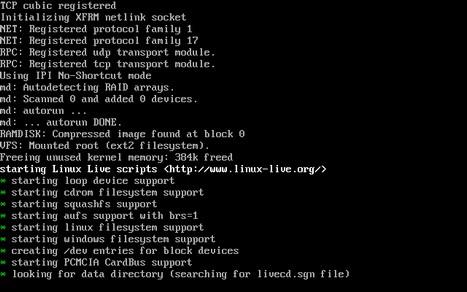
Once you have chosen a mode, Ophcrack will start loading and retrieving your passwords. This can take a few minutes, depending on your configuration and how strong the current passwords are. Please be patient and wait until the screens with text like the one below disappear and the graphical user interface is displayed.
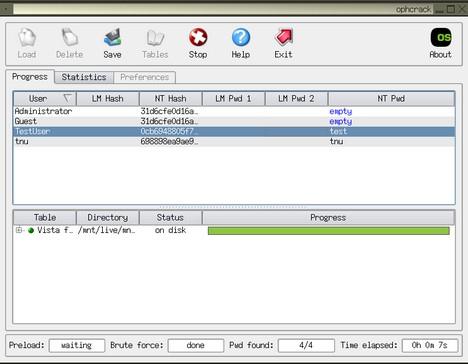
Once the tool loads, it will show a screen like the one 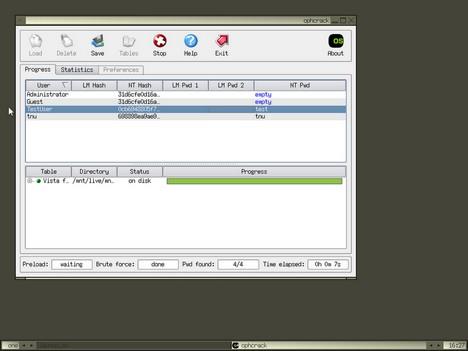
When finished, Ophcrack will show you all the registered users from your Windows Vista and their corresponding passwords in the NT Pwd column.
Write down the password for the user that interests you, reboot your PC and login to Windows Vista using the password you just recovered.
NOTE: this crack tool can crack only dictionary words ,it cant crack alphanumeric character password so i recommend the next method
Method 2
This is very easy method.from this method you can reset your password but you dont come to know your password as above method.
This method works on any of the following windows platform:-

- win 98
- win 2000
- win me
- win Xp
- win vista
You can download it from torrent sites
or from here click this link
after downloading the iso file burn the image to cd or dvd .I prefer u burn with roxio creator it works extremely well.
after burning it to cd , restart your pc
& boot with that cd
this tool works on linux
so good luck cracking& resetting password
please comment
METHOD 1
SOFTWARE NEEDED
ophcrack vista live cd download it here
STEP 1:Please make sure you download the Windows Vista Live CD and not the one for Windows XP. The Live CD is a disc image saved as an '.iso' file which you need to burn onto a CD. Use a good CD/DVD burning solution to write the image file on a blank CD.
STEP 2:
Once the disc is ready, you need to boot directly from the CD you just created
STEP 3:
Once you manage to boot from the Ophcrack Live CD, you will have three choices on how to launch the tool. The first two options will launch Ophcrack in a graphic mode. If you have problems with the first mode, then reboot and choose the second. Depending on the hardware configuration, on some computers both modes will work. On the computers i have tested it, sometimes the first mode did not function properly but the second one always worked just fine.
If you don't want any graphics, then choose the third option which will launch Ophcrack in text mode.
Once you have chosen a mode, Ophcrack will start loading and retrieving your passwords. This can take a few minutes, depending on your configuration and how strong the current passwords are. Please be patient and wait until the screens with text like the one below disappear and the graphical user interface is displayed.
Once the tool loads, it will show a screen like the one
When finished, Ophcrack will show you all the registered users from your Windows Vista and their corresponding passwords in the NT Pwd column.
Write down the password for the user that interests you, reboot your PC and login to Windows Vista using the password you just recovered.
NOTE: this crack tool can crack only dictionary words ,it cant crack alphanumeric character password so i recommend the next method
Method 2
This is very easy method.from this method you can reset your password but you dont come to know your password as above method.
This method works on any of the following windows platform:-
- win 98
- win 2000
- win me
- win Xp
- win vista
You can download it from torrent sites
or from here click this link
after downloading the iso file burn the image to cd or dvd .I prefer u burn with roxio creator it works extremely well.
after burning it to cd , restart your pc
& boot with that cd
this tool works on linux
so good luck cracking& resetting password
please comment


